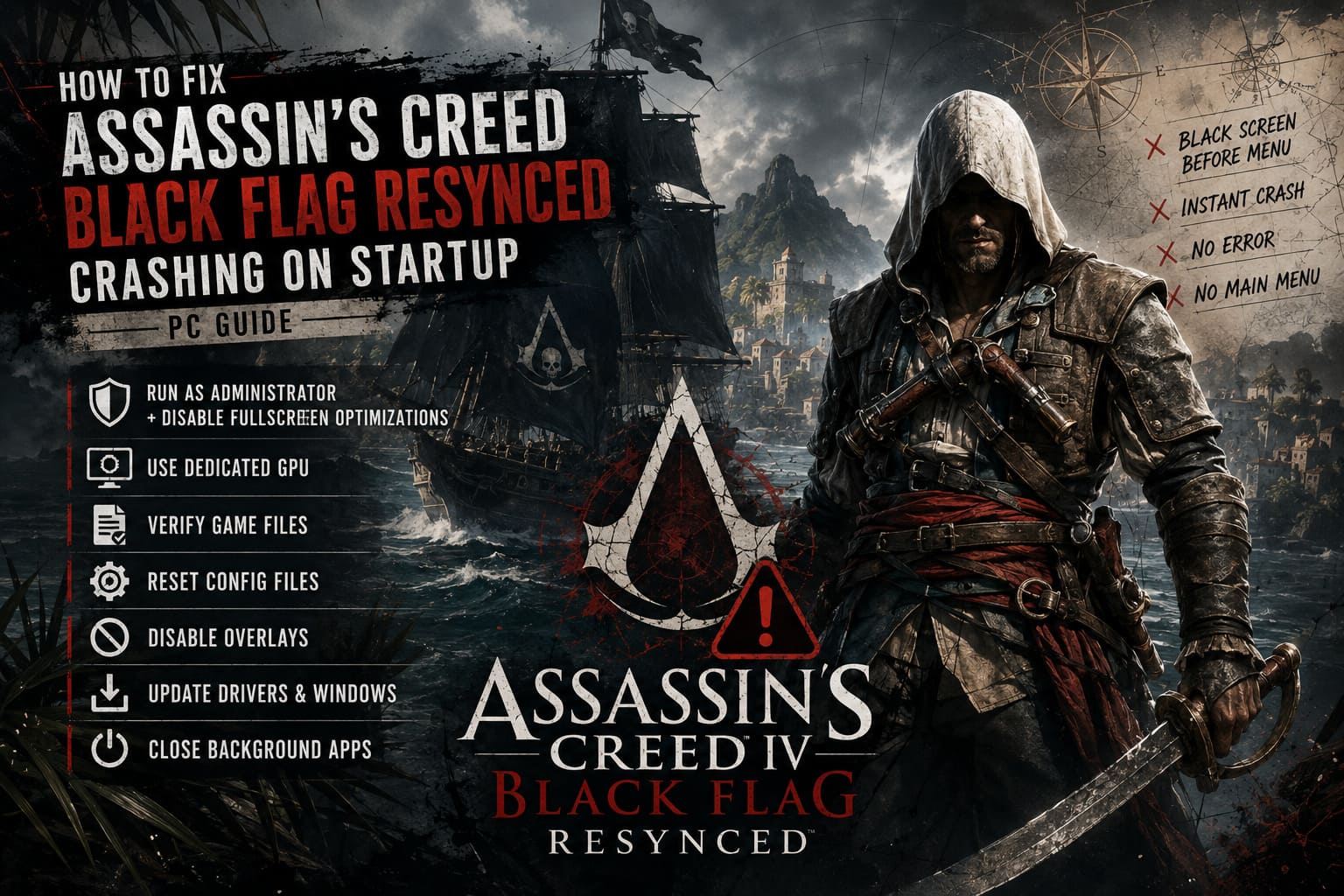
How to Fix Assassin’s Creed Black Flag Resynced Crashing on Startup (PC Guide)
There are few things more annoying than installing a big new game, hitting Play, seeing a black screen for two seconds… and then getting dumped right back to desktop like nothing happened. No error code. No warning. No explanation. Just silence.
That’s exactly the kind of issue a lot of PC players are running into with Assassin’s Creed Black Flag Resynced. And honestly, it’s the sort of launch problem that can ruin the mood fast—especially with a game like this, where the whole point is to get lost in the pirate fantasy, not spend your evening babysitting Windows settings.
The good news is that startup crashes are usually fixable. In most cases, the game isn’t “dead” or permanently broken—it’s colliding with one of the usual PC troublemakers: permissions, overlays, corrupted config files, GPU selection issues, or driver conflicts. I’ve dealt with this kind of launch nonsense across enough Ubisoft releases and big PC ports to know the pattern, and Black Flag Resynced fits it almost perfectly.
So if your game crashes immediately on launch, flashes a loading window, hangs on a black screen, or closes before the menu even appears, this is the guide I’d follow first. No fluff, no “reinstall Windows” nonsense—just the fixes most likely to get the game working.
Why Assassin’s Creed Black Flag Resynced Crashes on Startup
When a game dies before it even reaches the main menu, the problem usually isn’t gameplay performance—it’s the launch chain itself. Something is failing during the handoff between the launcher, Windows, your graphics driver, and the game’s own startup configuration.
From what players usually see with these crashes, the most common causes are:
- Windows permission conflicts preventing the game from writing data or accessing protected folders
- The wrong GPU being used, especially on laptops or hybrid systems with integrated and dedicated graphics
- Corrupted game files from a rough install, interrupted patch, or broken update
- Overlay software conflicts from Steam, Ubisoft Connect, Discord, GeForce Experience, or monitoring tools
- Bad config files generated on first boot, especially graphics settings that the game can’t handle cleanly
- Outdated GPU drivers or missing Windows components that modern games still depend on behind the scenes
The key thing to understand is this: startup crashes are often caused by small compatibility issues, not by one giant catastrophic bug. That’s actually good news, because it means you can usually solve them step by step without waiting for a patch.
My Recommended Fix Order (Don’t Skip Around Yet)
If I were troubleshooting this on my own system, I’d go in this order:
| Fix | Difficulty | How Often It Helps | Worth Trying First? |
|---|---|---|---|
| Run as Administrator + Disable Fullscreen Optimizations | Easy | High | Yes |
| Force Dedicated GPU in Windows | Easy | High on laptops / dual-GPU systems | Yes |
| Verify Game Files | Easy | Medium-High | Yes |
| Delete / Reset Config Files | Easy-Medium | High for instant startup crashes | Yes |
| Disable Ubisoft / Steam / Discord overlays | Easy | Medium-High | Yes |
| Update GPU Drivers + Windows | Medium | High | Absolutely |
| Close MSI Afterburner / RTSS / capture tools | Easy | Medium | Yes |
If the crash is happening immediately—as in, the game never truly opens—these are the fixes with the best payoff.
1) Run the Game as Administrator and Disable Fullscreen Optimizations
This is still one of the oldest PC fixes in the book, and yes, it still works surprisingly often.
Modern Windows security can sometimes interfere with game executables that want to create shader caches, save files, or initialize anti-tamper and launcher hooks during startup. Add Ubisoft Connect into the mix and you’ve got another layer of potential friction.
What to do:
- Open your game installation folder.
- Find the main executable for Assassin’s Creed Black Flag Resynced.
- Right-click it and open Properties.
- Go to the Compatibility tab.
- Enable Run this program as an administrator.
- Also enable Disable fullscreen optimizations.
- Click Apply and OK.
Then launch the game again.
Why this helps: Administrator mode gives the game cleaner access to system resources and folders it may need during boot. Fullscreen optimization can also cause weird issues with certain engines, especially when overlays or borderless rendering hooks get involved too early.
If your game was crashing after a black screen or before the splash logos, this is one of the first things I’d test.
2) Make Sure the Game Is Using Your Real GPU
If you’re on a gaming laptop, or even a desktop with both integrated graphics and a dedicated card, Windows sometimes makes truly baffling decisions. A demanding modern remake trying to boot on the integrated GPU instead of your RTX or Radeon card? That’s a recipe for a crash before the menu ever loads.

Force the game onto the high-performance GPU:
- Open Windows Graphics Settings.
- Choose Desktop app.
- Browse to the Black Flag Resynced executable.
- Add it to the list.
- Click Options.
- Set it to High Performance.
If you’re using NVIDIA or AMD software, it’s worth checking there too. I’ve seen systems ignore Windows preferences and still default to the wrong GPU unless both layers are configured properly.
Why this matters: A lot of startup crashes aren’t really “crashes” in the classic sense—they’re failed initialization attempts because the game is trying to boot with the wrong hardware path. If the engine expects dedicated VRAM, modern shader support, or advanced rendering features and gets the iGPU instead, it may just fold instantly.
3) Verify the Game Files Before You Touch Anything More Extreme
If you installed the game on launch day, downloaded a patch in the background, paused it halfway, or had any weird interruption during the install, file corruption is absolutely on the table.
And this is one of those fixes that costs very little time compared to a full reinstall.
On Steam:
- Open your Library
- Right-click the game
- Select Properties
- Go to Installed Files
- Click Verify integrity of game files
On Ubisoft Connect:
- Open the game page
- Go to Properties
- Find Local Files
- Run Verify Files
What this can fix:
- missing startup files
- broken shader cache packages
- corrupted data chunks
- damaged executables after patching
If your crash started after an update, don’t skip this step. I’ve seen games go from “won’t launch at all” to “works perfectly” after one verification pass.
4) Delete the Game’s Config Folder and Let It Rebuild From Scratch
This is the fix I personally trust the most for instant startup crashes after the very first launch attempt.
Sometimes the game creates a bad config file the moment it boots for the first time—wrong display mode, unsupported shadow setting, unstable resolution scaling, bad API choice, or some broken carry-over from previous Ubisoft config data. Once that file exists, the game keeps trying to load the same broken settings every time you start it.
What to look for:
Head to your Documents folder or the Ubisoft game settings directory and look for a folder tied to Assassin’s Creed Black Flag Resynced or Assassin’s Creed IV Black Flag.
Inside, you’ll usually find files like:
.inifiles.xmlsettings files- graphics config files
- cache folders
What I’d do:
If the game won’t launch at all, I’d back up the folder and then remove it entirely. On the next launch, the game should generate a fresh set of default settings.
Why this works: Broken config files are notorious for causing startup crashes before menu load, black screen loops, instant closes after splash screen, and failed graphics initialization.
If you’re comfortable editing config files manually, you can also look for anything related to shadow quality, ray tracing, upscaling, or fullscreen mode and tone it down. But honestly, if the game won’t boot, a full config reset is cleaner.
5) Turn Off Every Overlay You Don’t Need
This is the most “PC gaming in 2026” sentence imaginable, but yes—sometimes the game crashes because too many things are trying to draw on top of it before it even opens.
And Ubisoft games have a long history of getting weird around overlays.
Overlays I’d disable first:
- Ubisoft Connect overlay
- Steam overlay
- Discord overlay
- NVIDIA GeForce Experience overlay
- AMD overlay
- MSI Afterburner / RTSS
- recording tools, clipping software, frame monitors
Why overlays break launches: These tools inject into the game process so they can display notifications, FPS counters, capture clips, or enable in-game menus. Normally that’s fine. But when multiple overlays hook into a brand-new game with a fresh rendering pipeline, startup stability can go out the window.
If I had to pick the biggest suspects, I’d start with Ubisoft Connect overlay, Discord overlay, and RTSS / MSI Afterburner. Those three have caused enough launch weirdness over the years that I almost disable them by reflex when a new PC release starts acting up.
6) Update Your Graphics Driver — But Do It Properly
If you’re still using an older driver, especially one from before the game launched, update it. Not because “update drivers” is a lazy tech support cliché, but because new AAA releases often need day-one driver support to behave correctly.
That’s especially true if Black Flag Resynced is leaning on modern lighting features, ray tracing options, or newer shader paths.
My advice here:
- NVIDIA users: install the latest Game Ready Driver
- AMD users: update through Adrenalin
- If your system has had a messy driver history, consider doing a clean install rather than stacking update on top of update
Why this matters more than people think: Startup crashes can happen when the driver doesn’t properly recognize the game profile, shader compilation fails, a rendering feature calls something your current driver handles badly, or old driver remnants conflict with a new engine version.
This is one of those fixes that sounds generic, but on new releases it’s often very real.
7) Update Windows and the Boring Background Components Nobody Talks About
This is the least glamorous fix, but it matters.
Games don’t just rely on your GPU driver—they also rely on the messy ecosystem underneath it: Windows updates, Visual C++ Redistributables, DirectX components, security permissions, and system libraries.
If your OS is behind, or a required component is missing or damaged, you can absolutely get a startup crash with zero meaningful error message.
Make sure these are current:
- Windows Update
- Microsoft Visual C++ Redistributables
- DirectX runtime components
- .NET updates
- chipset updates if your system is unusually unstable across multiple games
No, it’s not exciting. Yes, it can fix the problem.
8) Shut Down Background Apps Before Launching Again
This one is less about “performance” and more about eliminating interference.
Before relaunching the game, close:
- web browsers with hardware acceleration running
- RGB software suites
- recording tools
- motherboard tuning software
- GPU tuning tools
- third-party launchers you don’t need open
I wouldn’t call this the magic fix on its own, but as part of a clean test environment, it helps. If the game launches successfully with all the clutter turned off, you can start turning things back on one by one and identify the real offender.
A Quick Troubleshooting Table for Common Startup Crash Symptoms
| Symptom | Most Likely Cause | Best First Fix |
|---|---|---|
| Black screen, then desktop | Broken config file or overlay conflict | Delete config folder, disable overlays |
| Small loading window appears and closes | Missing permissions or corrupted files | Run as admin, verify files |
| Game launches on laptop then instantly dies | Wrong GPU selected | Force high-performance GPU |
| Crash started after a patch | Corrupted update files or driver issue | Verify files, update GPU driver |
| No error message at all | Overlay hook, config issue, or Windows permission problem | Disable overlays, run as admin, reset configs |
What I’d Do If Nothing Above Works
If you’ve gone through all of the steps above and the game still crashes before launch, this is the point where I’d stop repeating the same fixes and move into actual isolation testing.
My next troubleshooting checklist:
- Try launching the game with all overlays disabled and Ubisoft Connect fully restarted
- Remove all overclocking, including GPU undervolts and RAM/XMP tweaks if your system is unstable elsewhere
- Check whether your antivirus or Windows Security is blocking the executable
- Install the game on a different drive if you suspect storage corruption
- Look for a crash log in the game folder, Documents folder, or Ubisoft support directories
- Compare your hardware to the game’s minimum requirements, especially VRAM and supported GPU feature sets
And if the crash only started after one specific patch, I’d keep an eye on Ubisoft support threads and community reports. Sometimes the issue really is on the developer side, and no amount of local tweaking can fully solve a broken build until a hotfix lands.
AC Black Flag Resynced 60FPS Mode: PS5 vs Xbox Series X/S Performance & Settings Guide
Final Thoughts
As frustrating as startup crashes are, Assassin’s Creed Black Flag Resynced crashing on startup doesn’t usually mean your install is doomed. In most cases, the fix ends up being something boring but manageable: a bad config file, an overlay conflict, the wrong GPU assignment, a permissions problem, or corrupted launch files.
If I had to prioritize the fixes that feel most worthwhile, I’d do them in this order:
- Run the game as administrator
- Disable fullscreen optimizations
- Force the dedicated GPU
- Verify game files
- Delete the config folder
- Disable every overlay
- Update GPU drivers and Windows
That combination covers the majority of launch issues I’ve seen in modern PC games, especially Ubisoft releases and big remasters that hit a wide range of hardware on day one.
Hopefully, one of these fixes gets you past the crash loop and back into the game where you belong—on the deck of a ship, chasing sea shanties and bad decisions across the Caribbean, instead of staring at your desktop wondering why your pirate adventure lasted exactly three seconds.